Your First Task
This guide will walk you through creating and managing your first task with TaskRepo.
Initialization
Before creating tasks, initialize TaskRepo:
This creates a configuration file at ~/.TaskRepo/config and sets up the parent directory for task repositories (default: ~/tasks).
Create a Repository
Tasks are organized into repositories. Create your first repository:
This creates a tasks-work directory with git initialization. You can create multiple repositories for different contexts:
List your repositories:
Add Your First Task
Interactive Mode (Recommended)
The easiest way to add a task is using interactive mode:
You'll be prompted for:
- Repository: Select from your available repositories
- Title: Brief description of the task
- Status:
pending,in-progress,completed,cancelled - Priority:
H(High),M(Medium),L(Low) - Project: Optional project name
- Assignees: GitHub handles (e.g.,
@alice) - Tags: Comma-separated tags
- Due date: Natural language (e.g., "tomorrow", "next week", "2025-11-15")
- Description: Full task description (opens in your editor)
Non-Interactive Mode
You can also create tasks with command-line flags:
tsk add -r work \
  -t "Fix authentication bug" \
  -p backend \
  --priority H \
  --assignees @alice,@bob \
  --tags bug,security \
  --due "next week"
With Links
Associate URLs with your task (GitHub issues, emails, documentation):
tsk add -r work \
  -t "Fix authentication bug" \
  --links https://github.com/org/repo/issues/123,https://docs.example.com/auth
View Your Tasks
List all tasks:
Filter by repository:
Filter by status and priority:
Show completed tasks:
Mark Task as Done
Complete a task by its ID:
You can complete multiple tasks at once:
Edit a Task
Edit an existing task:
This opens the task file in your editor. You can edit: - The YAML frontmatter (metadata) - The markdown description
Search Tasks
Search for tasks by text:
Search supports filters:
Interactive TUI
Launch the interactive Terminal User Interface:
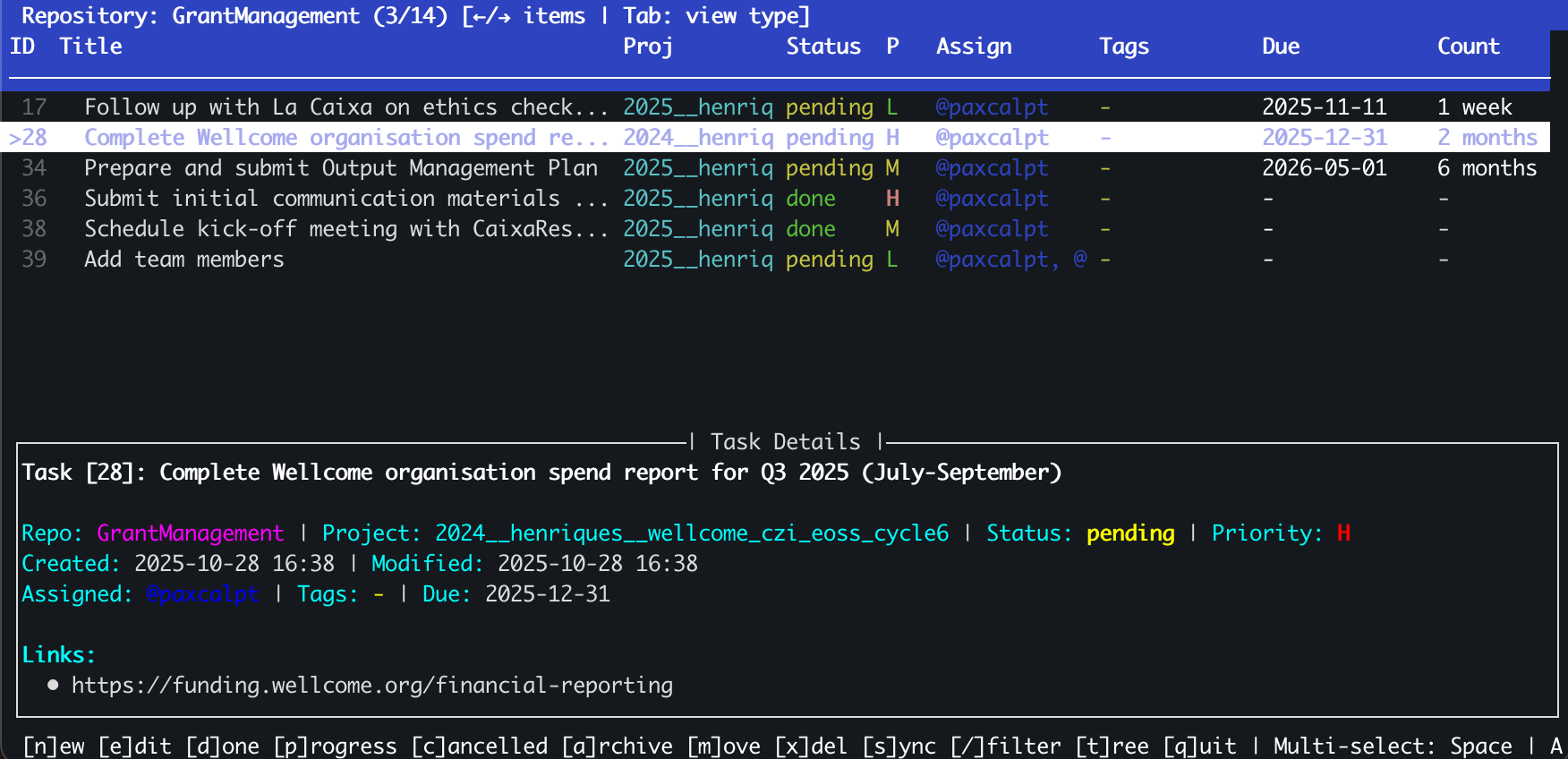
The TUI provides a rich visual interface with:
Navigation:
- ↑/↓ Arrow keys - Move between tasks
- Tab - Switch between repositories
- / - Filter tasks
Operations:
- Space - Select/deselect tasks (multi-select)
- Enter - Mark selected task(s) as done
- e - Edit selected task
- d - Delete selected task
- p - Mark as in-progress
- c - Mark as cancelled
- a - Archive completed tasks
- m - Move tasks to different repository
- s - Sync with git
- t - Toggle tree view
- q - Quit
Task Details Panel:
The bottom panel shows complete details for the selected task including:
- Repository, project, status, and priority
- Creation and modification timestamps
- Assigned users and tags
- Due date with countdown
- Associated links (GitHub issues, documentation, etc.)
Sync with Git
Sync your tasks with a git remote:
# Sync all repositories
tsk sync

# Sync specific repository
tsk sync --repo work

# Pull only (don't push)
tsk sync --no-push
What You've Learned
You now know how to:
- ✅ Initialize TaskRepo
- ✅ Create repositories
- ✅ Add tasks (interactive and non-interactive)
- ✅ List and filter tasks
- ✅ Mark tasks as done
- ✅ Edit tasks
- ✅ Search tasks
- ✅ Use the TUI
- ✅ Sync with git
Next Steps
- Command Quick Reference - All available commands
- Task Management Guide - Advanced features
- Configuration - Customize TaskRepo
- Git Sync - Collaboration workflows